iPad or Bust: two weeks later

posted by Ken Case on 02.11.10 @ 7:53 am

A week and a half ago, I announced that we were planning to bring all five of our productivity apps to iPad.  So much has happened in the short period of time since then that it feels like we’ve been in some sort of time distortion field!

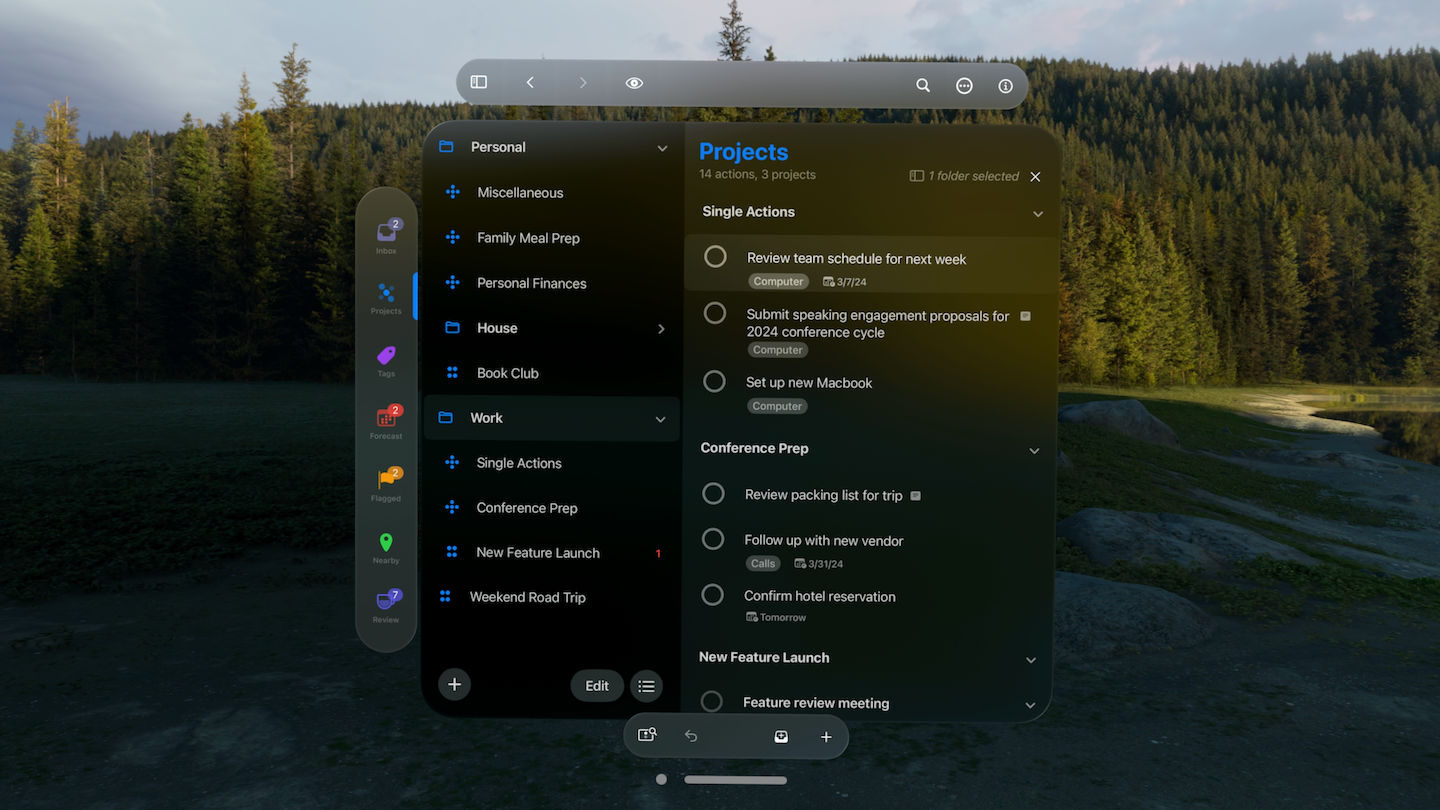
Let me skip straight to the good stuff and share some screenshots with you:

I should point out that the document icons in the document lists come from the QuickLook previews generated on the Mac, so they show features that aren’t actually supported in the iPad app yet:  for example, if you compare the OmniGraffle canvas screenshot with the corresponding icon in its document list, you’ll see that OmniGraffle for iPad doesn’t actually render text yet.

We don’t even have a mechanism for creating new documents yet:  both apps are just loading documents created on a Mac.  But it’s certainly progress!

Now, I mentioned two weeks ago that we were generally prioritizing iPad work over some of our Mac projects, but that some Mac projects—specifically, OmniOutliner 4 and OmniPlan 2—would take precedence over their iPad counterparts.  In response to that plan, I received a lot of feedback that folks would like to see OmniOutliner for iPad sooner rather than later.

So we started thinking about how we could get started on OmniOutliner for iPad sooner.  We really don’t want to delay OmniOutliner 4, so we instead started thinking about how we could finish OmniOutliner 4 more quickly.  We realized that if we scaled back some of the esoteric features which we’d planned for the Pro edition of version 4—cloning and multiple schemas—we could shave three months off its development schedule and get started on OmniOutliner for iPad that much sooner.  Now, both of those features are still pretty interesting to us, and we’ve already laid the groundwork for supporting these in the underlying outlining engine—but we think bringing OmniOutliner on iPad is more important overall, so that’s what we’re going to do.

So I’m pleased to say that both OmniOutliner 4 and OmniOutliner for iPad will be coming three months sooner!

Oh, what’s coming in OmniOutliner 4?  We’ve rebuilt the engine inside of OmniOutliner, so among other things it will support text zooming, showing and hiding columns, “Smart Match” completion cells, searching across all column types, better link handling (no more unfindable tokens!), and (in the Pro edition) saved smart folders.  (Also, say goodbye to the old Aqua drawer!)

Thanks for all your feedback on my last announcement, and I look forward to receiving any feedback you might have on this update!

iPad or Bust!

posted by Ken Case on 01.29.10 @ 4:56 pm

One of the things we often struggle with as a company is deciding how much to talk about our future plans and our current work towards those plans.  Our natural inclination is to be open about what we’re doing, but there are several problems with talking about future plans:

  • Our plans can and will change, upsetting customers who were making their own plans based on our original plan.
  • Our plans might interfere with current sales, as customers stop buying OmniGraffle 8 in anticipation of the future release of OmniGraffle 9.
  • We might get accused of promoting vaporware, as when we started talking about OmniFocus.

But there are also problems with not talking about our future plans, as it leaves people wondering what direction we’re going and whether they’d like to be going that direction too.  So, given the exciting event of this week, I think it’s appropriate for us to share some of our plans with you now…

Remember how Macintosh was intended to be the computer “for the rest of us“?  That’s what we feel Apple’s iPad is:  the best computing device for most of the things people use computers for.  (Or, as Apple puts it, “the best way to experience the web, email, and photos.”)  It’s the computer people can sit down and start using immediately, without training, whether they’re 2 or 92.

We’re really excited about Apple’s iPad, and we want to make all of our products available for it as soon as we can.  Yes, we already had a big year planned for 2010, with several long-anticipated major product releases—but we think iPad is really important:  important enough to spend some time juggling our plans to figure out how we can introduce five new iPad apps.

Yes.  Five.  We want to bring all five of our productivity apps to iPad:  OmniGraffle, OmniOutliner, OmniPlan, OmniFocus, and OmniGraphSketcher.

This is a big undertaking, and we can’t do it all at once.  We started working on iPad adaptations of OmniGraffle and OmniFocus as soon as the SDK was made available Wednesday afternoon, and we’re hoping to get started with OmniGraphSketcher for iPad within the next few weeks.

OmniPlan for iPad will be a little further behind, simply because the OmniPlan development team is on the home stretch of their two-year OmniPlan 2 development cycle, and we’d like to get that out the door before bringing OmniPlan to another platform.

Similarly, the OmniOutliner team is also heavily into a major development cycle—one which affects not only the next major release of OmniOutliner, version 4, but also the upcoming major releases of both OmniFocus and OmniPlan—so that team is booked up for at least the next several months.  But while it won’t be on iPad on day one, OmniOutliner is where all of our projects start and we think it will be a great fit for iPad, so we plan to adapt it as soon as possible.

What does this mean for our non-iPad apps?  Well, for the apps we’re bringing to iPad immediately there will be a bit of a delay in their next major Mac release cycle:  for example, while we’ve already done a fair bit of work on OmniGraffle 6 for Mac, we’re going to put that work on hold while we work on the iPad adaptation.  Not that we don’t think OmniGraffle 6 is important or exciting, but we think OmniGraffle for iPad is even more important.  For the other apps, OmniPlan 2 and OmniOutliner 4, we’re hoping for little or no delay in our upcoming releases, but there’s likely to be a bit of a pause immediately afterwards as the teams shift gears and start working on bringing those apps to iPad as well.

So, that’s our current plan.  As I said in my introduction, our plans do change over time—obviously, they’ve changed quite a bit just this week!—so please don’t rely on things happening according to today’s particular snapshot of those plans.  But I hope that this snapshot at least gives you a sense of what we’re doing and why (and perhaps even an idea of when), so you can decide whether we’re going in a direction you’re interested in.  Either way, I hope you’ll let us know!

Thanks for your time!

Workaround for disappearing stalled projects in OmniFocus

posted by Linda on 11.16.09 @ 9:56 am

We’re not too fancy to admit when something in one of our apps doesn’t work quite right. For instance, I don’t know if you’ve noticed but when you hit the “pour me a large caffeinated beverage” button in OmniGraffle, nothing happens. Don’t worry, I’ve totally filed a bug on that.

In the current version of OmniFocus, there’s some wonky behavior with stalled projects. (Yes: wonky. It’s a technical term.) It’s something we plan to fix, but in the meantime I’ll walk you through the problem and a suggested workaround.

Let’s say you’re reviewing your stalled projects by choosing “Stalled” in the sidebar filter in order to display all projects without any available actions. In my example, I’ve got a project titled “December fitness events”, and sadly for my fitness, it is empty.

stalled
Woe.

I’d like to go ahead and add an action to this project, but when I click the project and hit return, poof! It disappears altogether.

poof

Now, I could take this as a sign that I wasn’t meant to do any fitness events in December and instead focus my attention on devouring as many holiday-themed cookies as humanly possible, but here’s the thing: the project isn’t gone, it just thinks it has an action item now. Even though it’s an empty action, because you haven’t yet typed anything, the project is officially no longer stalled.

So, here’s a workaround for that issue, as suggested by our super-smart Support Ninja, Kris:

First, set your Clean Up preferences (in Data Preferences) to “Clean Up Inbox items which have: Both a Project and a Context”.

datapreferences

Next, set your sidebar filter to “Stalled” as before. As you review everything and decide to add new actions to the empty projects, bring up the Quick Entry window and add the action there.

quickentry

Since you’ve told OmniFocus to keep things in your inbox until both the project and the context have been set, you can assign an item to a stalled project and your project will remain stalled until the context is set as well. The purpose here being that you can continue to see the list of stalled projects (ie, no more mid-workflow disappearing acts) until you’re done organizing your actions.

inbox

Once you’re done reviewing your stalled projects, you can return to the inbox and assign contexts for everything. Voila! Your actions get filed into their proper locations, and your stalled projects are no longer.

finalfolder

I hope that was at least marginally useful for you OmniFocus users, even if you haven’t encountered this particular issue before. And hey, would you like to see more workarounds/tips/tricks in our blog? Let us know, all suggestions are more than welcome.

OmniFocus, GTD, and You!

posted by Linda on 10.12.09 @ 10:43 am

While OmniFocus definitely does not require you to be a Getting Things Done® devotee in order to make good use of the software, it’s true that Omni developed OmniFocus with the GTD system in mind. If you’re new to the work-life management system of GTD and wondering just exactly how you can implement the methodology in OmniFocus, we now have an awesome new resource for you: the OmniFocus, GTD, and You white paper.

But Omni, you’re saying. White papers are so boooooring. They use words like “extensible” and “data-driven” and most of them are just cheesy marketing materials in disguise. WAHHH.

Listen, I can’t hear you when you use that tone of voice. And stop worrying, because this is a totally useful document written by our stellar documentation folks, and the marketing weasels didn’t even touch it. (I wanted more cowbell, but would they listen? NO.)

The white paper gives a thorough explanation of how the GTD concepts of Capture, Process, Organize, Do, and Review are handled by OmniFocus, and you don’t need to have any previous understanding of the Getting Things Done system to read it. As a sometimes-committed, sometimes-not OmniFocus user myself, I found this white paper really helpful and inspiring.

The good folks at DavidCo not only helped us make sure the white paper was accurate, but are also promoting OmniFocus as the recommended Mac GTD solution from their online store. We want to thank them for working with us and making OmniFocus available to a wider GTD audience.

So what are you waiting for? Go forth and download, and get some best-practice ideas for making the most of your OmniFocus document.

OmniFocus, OmniGraffle, and Snow Leopard updates—oh my

posted by Linda on 08.27.09 @ 8:40 pm

Lots of news today, people, so I’m going to try and keep this short so you can skip straight ahead to the part where you sit back and bask in that new-software smell.

Updated: OmniFocus! OmniFocus 1.7 is now available for your downloading pleasure, and includes a bevy of interface improvements designed to make everything just a little more smooth and simple. We also re-worked Perspectives, hopefully making the process of working with them much easier. Overall sync performance has been improved (yay!), and you can now view a list of the attachments in your OmniFocus document, and delete them as necessary to speed up document syncing even more.

Also updated: OmniGraffle! OmniGraffle 5.2 includes support for support for portables with Multi-Touch trackpads, so you can now pinch to zoom in or out, resize a selection, or rotate a selection. We also added fixes to tables, shared layers, and dealt with some stability issues.

Also also updated: EVERYTHING ELSE. OmniFocus, OmniGraffle, OmniOutliner, OmniWeb, OmniPlan—hold on, typing cramp . . . okay—OmniGraphSketcher, OmniDiskSweeper and OmniDazzle have all been updated with support for Mac OS X 10.6 Snow Leopard.

You do not EVEN want to know what time the engineers went to bed last night, is what I’m saying.

Everything can be downloaded from our handy-dandy Snow Leopard status page. Enjoy!

What we’ve been working on lately

posted by Linda on 08.18.09 @ 3:20 pm

First things first, if you haven’t already seen this incredible video, may I recommend doing so? You’ll want to load it in HD full-screen mode, let it buffer, then just kick back and relax. (Via the always-awesome Kottke.)

Next up: what’s Omni been doing lately? Let me break it down for you bullet-style:

• Preparing for Snow Leopard! Engineers are madly adding Snow Leopard updates to all our shipping apps, with the goal of having everything ready the day Snow Leopard is. I don’t exactly know how this works, if they just . . . physically stuff an actual leopard in there, or what (aw, who’s a snuggly? You are!), but they seem very busy.

• Starting sneaky peeks of OmniFocus 1.7! LOTS of changes in the works, and you can get the rundown here. Warning: running an alpha version isn’t for everyone, but if you don’t mind, you know, living on the edge a little, the very latest builds are being constantly made available via our sneaky peek page.

• OmniWeb 5.10 sneaky peek updating! Speaking of sneaky peeks (the more I type that term, the goofier it sounds. So SNEAKY, these peeks), the work-in-progress version of OmniWeb, 5.10, has just been updated with the latest WebKit (from Safari 4.0.3) and has several improvements to its built-in software update (including the ability to ignore a particular update).

Questions? Feedback? Cool links to share? Chat us up in the comments.

Using OmniFocus for travel-related information

posted by Linda on 07.22.09 @ 1:06 pm

I’m heading to Chicago for the BlogHer conference tomorrow, and as part of my last-minute preparations (which include charging an embarrassing number of electronic devices, because god forbid I become digitally detached for ONE HOT SECOND; also, packing several candy bars because 1) calories totally don’t count when consumed during travel and 2) humans taste terrible, which is why if you crash in the mountains and are forced to consume the flesh of your fellow passengers, it’s best to have a Snickers on hand for a nice palate-cleansing dessert), I’ve entered my travel-related information into OmniFocus.

My plan is to have a well-organized list of helpful information that I can access via my iPhone while I’m on the road and at the actual event. I started by creating a folder in my project list titled “BlogHer”, and then creating a few relevant projects.

In each project I entered the individual pieces of information I wanted to have on hand, like flight times, conference panels, sightseeing locations, and evening events. I put all associated data in the notes sections: panel descriptions, flight confirmation numbers, addresses, and so on.

Then I assigned contexts to everything, with one parent context called “BlogHer”, and sub-contexts titled “Travel” (where all my car service/flight/hotel information went), “Exploring” (the sightseeing stuff), “Agenda” (all the conference panels), and “Parties” (evening events and their locations).

I synched everything to my phone and it all looks like I expected, which is always a good thing. I can select the “BlogHer” context to view all those sub-contexts . . .

. . . and click on one to have the exact information I need, wherever I am.

This all seems pretty handy, but I can’t help wondering if there’s a better way to organize all this stuff. Those of you who have used OmniFocus while traveling, how do YOU set up your document? Any tips for making this even more useful?

Getting active with OmniFocus: perspectives and wrapup

posted by Linda on 06.25.09 @ 2:09 pm

Behold, the final entry in our thrilling saga of Getting Active With OmniFocus, and in this episode, ALL WILL BE REVEALED. WAS your intrepid blog author in fact able to master the art of personal task management? DID she stay committed to using OmniFocus on a regular basis? After nearly three months, HAS she learned a single blessed thing, other than the surprising fact that the lyrics to “Blinded By the Light” actually feature the phrase “revved up like a deuce”, not the far more confusing and less-savory line she misunderstood for years?

All this and more . . . after the break! Please enjoy this awesome sign I found in West Seattle:

Aaaaand we’re back. So, I’ve talked about the first days of using the app, setting up in-depth task info, and the process of reviewing my OmniFocus document.

Confession: I have not exactly embraced reviewing. In fact, it would be more accurate to say I have not done an official review since talking about what a great idea reviewing was. Just keeping it real over here, folks.

The last topic I wanted to cover is Perspectives, but first, I’ll show you what my document currently looks like:

(You may notice my toolbar looks different from YOUR toolbar. That is because I am a unique snowflake. I’ll get to that part in a second.)

Until recently, all of my OmniFocus projects were really categories, not a group of related tasks working toward a common goal. I set it up that way because so many of my tasks are repeating and it seemed easier for me to think of each project as a bucket.

Over time, I learned that the downfall with this approach for my working style was the stagnancy of seeing the exact same top-level list every time I looked at my document. It was too easy to start skipping over important areas, or simply becoming le bored with the whole thing. So I re-worked my document to include more actual projects with a beginning and an end, and changed some of the necessary information buckets to single action lists.

As a result, it felt like I suddenly had a LOT more information in my document, and even though everything seemed a lot more organized, I wasn’t really able to take the whole thing in at a glance any more. The more stuff you have in OmniFocus, the smarter you’ve got to be about accessing it. This isn’t a limitation of the app—I mean, the thing that really makes OmniFocus stand apart from the task-management crowd is its myriad options for viewing your data—it’s just another one of those areas of personal responsibility. OmniFocus is awfully damn smart, but you still have to tell it what to do, you know?

The first step is to figure out how you want to look at your information. Want to only view things that are due this week? Focus on a certain project? Display items that are available, flagged, and under the “Phone” context? By selecting items and fiddling with the View Bar to filter data, you can do some serious fine-tuning to your working environment.

Of course, after you’ve clicked around and set up filters and gotten everything tweaked juuuuust right for one working mode, you might want an entirely different set of viewing criteria for concentrating on a separate collection of information. This is where Perspectives comes in REALLY handy. In a nutshell, Perspectives allows you to save your window settings, so you can easily switch between viewing environments without having to re-configure everything every single time and consequently lose your flipping mind and ultimately find yourself sobbing on YouTube about how everyone should just LEAVE BRITNEY ALONE, OMG.

One of my saved Perspectives is a focused view of some projects that are relevant to my home life. I set this up by first selecting some projects and single action lists by Command-clicking until I had everything I wanted in my window.

I selected Focus on (Selected Items) from the View menu (you can also do this by clicking the Focus toolbar button), which basically tells OmniFocus to ignore everything in your document outside of the selected items. The sidebar only includes those items that you’re focusing on.

I then chose Show Perspectives Window from the Perspectives menu. To create a new perspective, I clicked the little plus sign down there at the bottom left of the window, then typed “Home”. Kerblam: perspective saved, along with all my view settings, filters, and sorting criteria.

I know, I know: you’ve got burning questions at this point. Like How’d you get that spanky custom icon? and Say, is Omni known for its healthy snacks?

1) On the bottom left of the Perspectives window is the selected perspective’s current icon (if you don’t see the settings, click the Expand Settings button). To choose a different icon, click the wee little arrow at the lower right of the icon. Awesome, except it gets even better: you can drag in any image and drop it on the icon to replace it. I used custom icons for all of my saved perspectives.

2) No.

Finally, I customized my toolbar to include icons for each of my perspectives. Right-click on your toolbar and choose Customize Toolbar… and you can drag any of the items (which will include any perspectives you create) into your toolbar and arrange everything just so.

Now whenever I want to quickly change views from one work mode to the next, I just click a toolbar button. I even have a perspective titled “Goals”, which is a saved view of some long-term goals of mine. It’s not something I look at frequently throughout the day, but it’s nice to have it there. Any time I want a visual reminder (or a mental cattle-prodding) of the steps I need to take towards the goals—which range from “Publish a book” to “Teach my son to swim”—I click my pretty little heart-shaped icon and there they are.

One last note on this whole topic of focused view settings: if you’re like me, you may find yourself seemingly TRAPPED in a certain view. It wasn’t immediately clear to me how to “un-focus”, in other words. Like, great, I’m focused in on a particular project, but now I want to see my entire library again. Uhhhhhh?

The thing you want to do in this case is tell OmniFocus to “Show All”, either by clicking the toolbar button or selecting Show All Projects from the View menu. Whoomp, there it all is. You could also choose “Revert to Default View” from the Perspectives menu to get out of a certain perspective.

THE CLUMSY WRAP-UP:

After three months, I’ve found that my dedication to OmniFocus waxes and wanes. I launch it every day I’m in the office, but often forget to do so at home. Which has earned me this warning on more than one occasion:

(It’s basically saying “Hey, you haven’t synchronized OmniFocus on your home machine in a while, you slacker. You want to just unregister that machine, or what?” I just hit Ignore whenever I see this, because there’s no button that says SHUT UP WITH YOUR NAGGING.)

I have a bad habit of setting task due dates, then resetting the date once the deadline has passed and I still haven’t completed the task. Sometimes I do this, like, a LOT.

As I confessed earlier, I have been entirely remiss in implementing a reviewing process.

Also, I turned off menu bar notifications (in Preferences > Data > Show Due Soon and Overdue actions) so for the express purpose of ignoring items that are overdue. Ahem.

However, I now consistently remember all sorts of things I used to forget. I don’t miss the deadlines that are truly important. I have an overall sense of being much more organized, thanks to using one particular system for managing stuff instead of relying on a variety of methods (notepads, Post-Its, the faulty memory-storage recesses in my brain).

One of the benefits we attribute to OmniFocus is similar to the GTD credo, that by getting things out of your head you free yourself to focus on what’s really important. I am finding this to be true in ways I didn’t quite expect. For me, it’s not so much that once something is stored in a system I reap the rewards from not having it lying around my frontal lobe taking up valuable real estate, it’s more that the act of focusing on it in order to write it down has a surprisingly positive effect. Engaging with my goals in order to break them down into actionable steps makes me feel much more capable of completing them. Once a challenging project has been turned into words on a screen, it becomes this . . . doable thing, instead of a Lurking Pile of Intimidating Doom.

This mindset has helped me just buckle down and complete some projects, but more importantly, I believe it’s helped me actively take on goals I’ve been mentally kicking around for years. Since I’ve been using OmniFocus, I’ve run a 5K race (my first since 1998), began the process of pitching a nonfiction book, and started writing the first chapter in a fiction novel. Now, would I have done these things anyway? Maybe. I’m convinced, though, that OmniFocus had something to do with it.

I’ve learned a lot about how OmniFocus works, but I’m definitely still learning about my own workflow and what works best for me. I know it will be an ongoing process, and that in order to get the most out of it, I have to put the effort into it. Have I completely changed my unorganized, task-procrastinating ways? No. Will I still be using this tool a year from now? You know, I really think I will.

Thanks for reading along, and as always, if you have any questions or feedback, I’d love to hear from you!

OmniFocus 1.5 for iPhone and iPod touch available on App Store

posted by Linda on 06.18.09 @ 12:00 pm

The OmniFocus team has been hard at work lately, and we’re geeked to let you know that version 1.5 for iPhone and iPod touch is now available. OmniFocus 1.5 for iPhone and iPod touch leverages many of the new capabilities in the iPhone OS 3.0 software update, including cut, copy and paste, integrated Maps and more. If you read Brian’s article on location-based contexts, you know how OmniFocus works with Location Services—OmniFocus 1.5 for iPhone and iPod touch now displays nearby context categories of possible tasks using a map. Just touch a pin to see all the tasks within the corresponding context category. 

NOW YOUR TASKS WILL HAUNT YOU WHEREVER YOU GO! Er, I mean, smell the unparalleled productivity!

The app also now features a new Search screen for easily searching through projects and actions, and a new Repeat screen enables the quick set-up of repeating actions and projects. Web links can render directly inside the application itself for quicker viewing. Other new features include “due date” display for each Action list, and direct feedback email to the Omni Group from within the application itself.

What are you waiting for? To the App Store with you, mister/missy, and grab the new version.

OmniFocus for iPhone: the Coolest Feature You’re Probably Not Using

posted by Brian on 06.11.09 @ 6:10 pm

I wanted to do a blog post about what I regard as (in my humble opinion) the single most awesome feature in OmniFocus for iPhone. It’s also a feature that I’m not sure everyone knows about. Time to change that!

OmniFocus for iPhone plugs into part of the iPhone OS called “Location Services”; this lets it figure out where in the world you’re located. The location-finding is most accurate if you’re using a device that has GPS (an iPhone 3g or the new 3gs, for example), but if you’ve got a first-generation iPhone or an iPod Touch, the device can also figure out your location by seeing which cellphone towers and/or WiFi networks it can find. (WiFi is actually more accurate than the cell-tower method, at least here in the US; overseas, the situation may be different.)

Okay, this is cool and all, but how is it useful in OmniFocus? Well, your contexts can also have location information associated with them. By combining the two, OmniFocus can do Google map searches to help you figure out what you can get done based on where you currently are. Tap the “Nearby Contexts” button – it looks like a crosshair on the toolbar – and OmniFocus will show you where you can go to accomplish actions in the contexts it has location info about.

To assign location info to one of your contexts, do the following:
Tap “Contexts” on OmniFocus for iPhone’s home screen.
Tap the “Edit” button in the upper right of the screen.
Tap the context you want to edit.
Tap one of the location buttons described below and enter your information.

The various kinds of Location info supported are:

Current location – where you are right now, expressed as latitude/longitude.

Contact - The address assigned to the contact you choose is used.
Address – Enter an address. Anything that works in the iPhone Maps application works here; street address of your home, or even something as general as “Beijing, China”.
Business Search – Specific business names and general categories are both supported; OmniFocus will return the closest result it can find. If you have a favorite drug store where you get prescriptions filled, you could enter the name; if you travel a lot, you could just enter “Pharmacy” and get results in multiple cities.
Always Available – This setting is good for contexts like “Phone” – ones that are generally available no matter where you are.

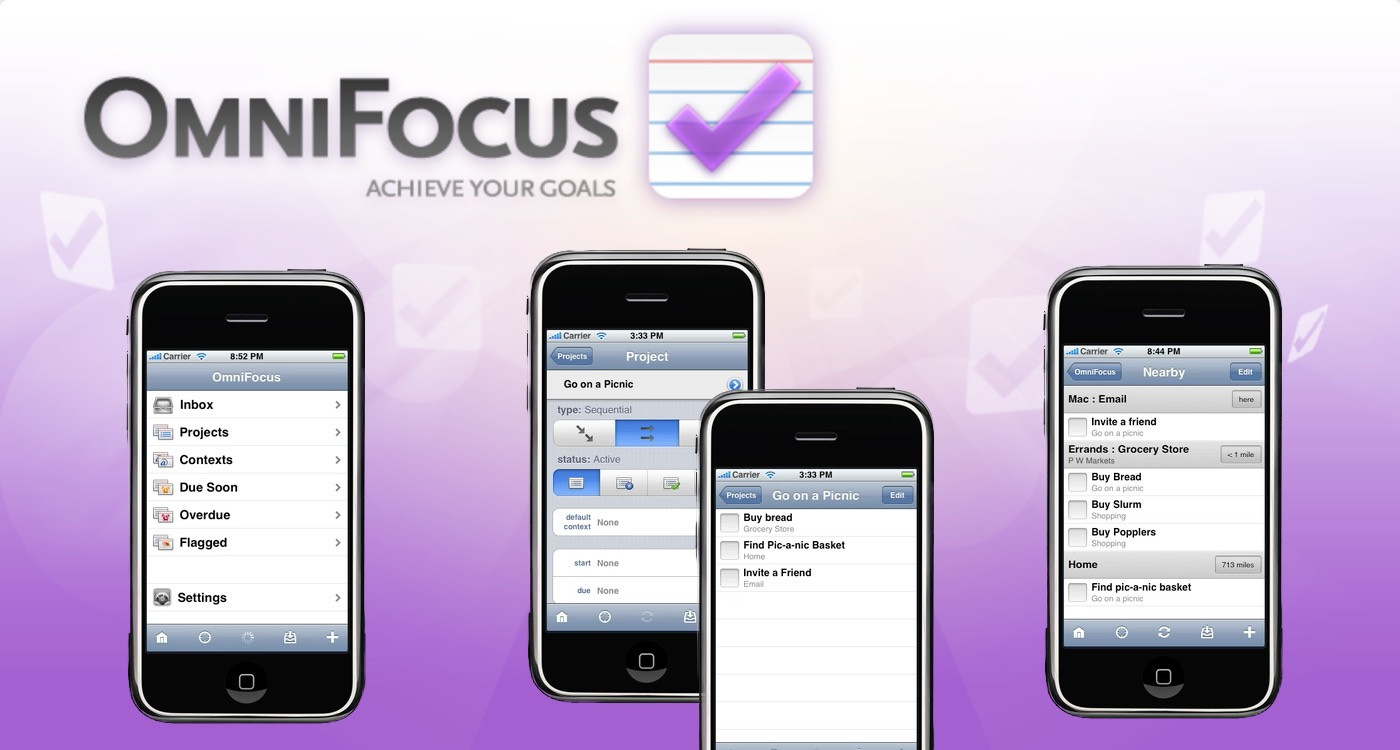
In any case, once your contexts are set up, you can tap the nearby button and get a handy list that looks like this:

(A tap the button on the right side of each header takes you to the Maps application so you can navigate to the location, by the way.)

I’ve added a list of location-based contexts that folks here at Omni use to get folks started. I’ve also created a thread over on our forums where folks can swap further ideas – we’re doing a google map search behind the scenes, so using their search operators, you can do some neat tricks with this stuff!

Suggestions:
Home
Office
Phone (always available, if you’re on an iPhone)
Grocery
Pharmacy
Post Office
Music Store
Book Store
Apple Store
Cities you visit frequently